
Top 5 Samsung Galaxy Tips and Tricks
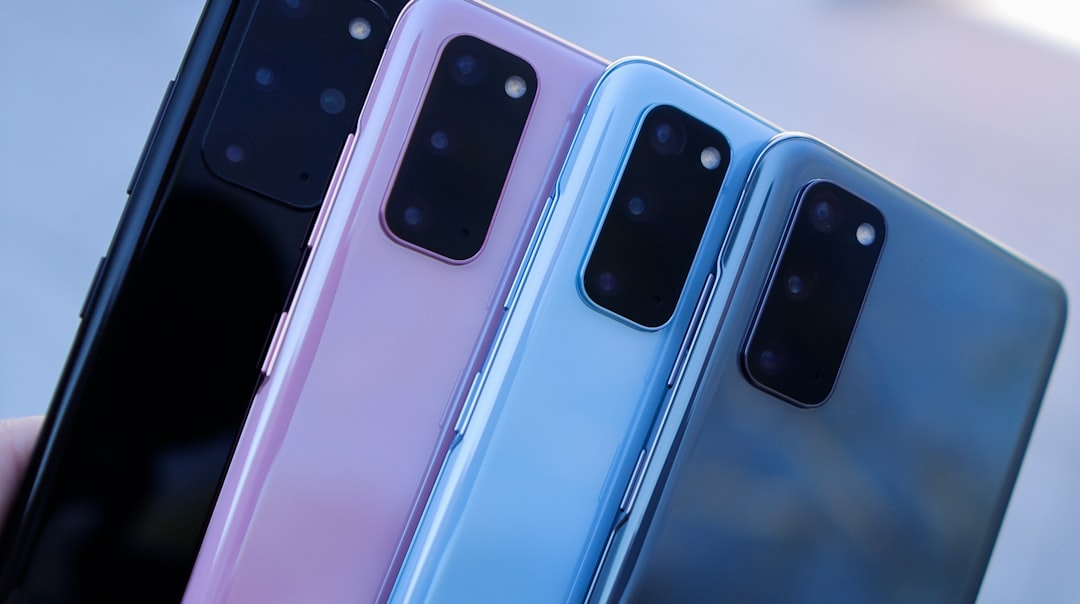
The Edge Panel on Samsung devices offers a unique way to access apps and tools quickly, enhancing the user experience significantly. Users can customize this feature to suit their preferences, allowing for a more personalized interaction with their device. By swiping from the edge of the screen, they can reveal a panel that can be filled with frequently used applications, contacts, and even useful tools like a clipboard or weather widget. This customization not only streamlines access to essential functions but also helps in decluttering the home screen, making it easier to navigate.
To customize the Edge Panel, users can go into the settings menu and select the “Display” option, followed by “Edge Screen.” Here, they can choose which panels to activate and rearrange them according to their needs. The ability to add or remove panels means that users can tailor their experience based on their daily tasks. For instance, someone who frequently uses social media might prioritize those apps on their Edge Panel, while a professional might prefer quick access to productivity tools. This flexibility ensures that the Edge Panel remains a valuable asset for anyone looking to enhance their efficiency.
Using Multi-window Feature for Multitasking
The Multi-window feature on Samsung devices is a game-changer for multitasking enthusiasts. This functionality allows users to run two applications simultaneously, side by side, which is particularly useful for those who juggle multiple tasks at once. For example, one could watch a video while taking notes or chat with a friend while browsing the web. This capability not only maximizes productivity but also enhances the overall user experience by making it easier to switch between tasks without losing focus.
Activating the Multi-window feature is straightforward. Users can simply tap the recent apps button and select the desired applications to open in split-screen mode. This feature is especially beneficial for professionals who need to reference documents while drafting emails or for students who want to research while writing assignments. The ability to resize the windows also adds a layer of customization, allowing users to prioritize one app over another based on their immediate needs. Overall, the Multi-window feature exemplifies how Samsung devices cater to modern multitasking demands.
Taking Advantage of Samsung’s Secure Folder
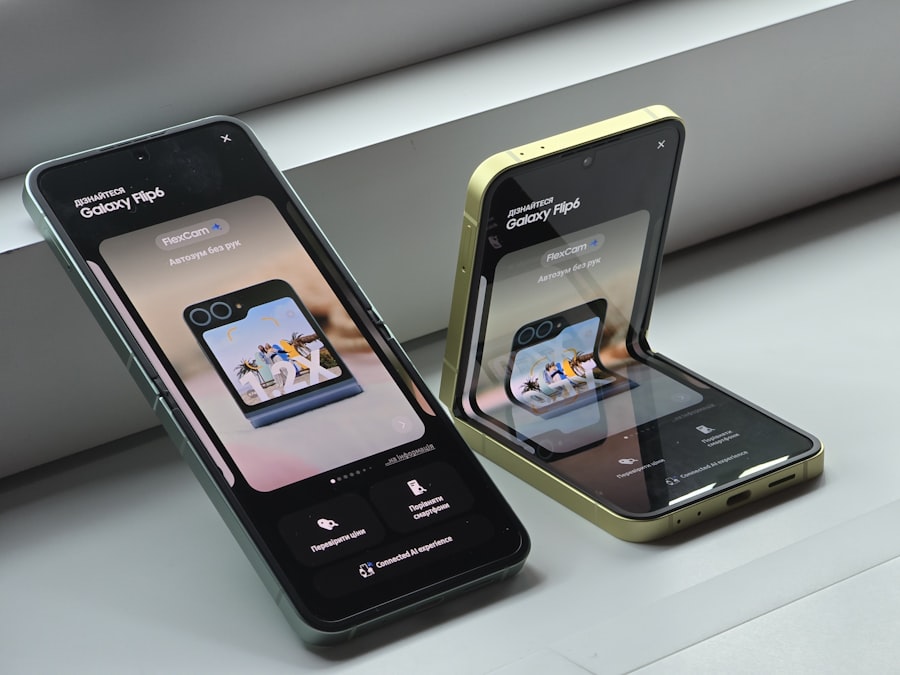
Samsung’s Secure Folder is an essential tool for users who prioritize privacy and security on their devices. This feature allows individuals to create a separate, encrypted space on their smartphones where they can store sensitive information such as personal photos, documents, and apps. By utilizing the Secure Folder, users can ensure that their private data remains protected from prying eyes, providing peace of mind in an increasingly digital world.
Setting up the Secure Folder is a simple process that involves creating a unique password or using biometric authentication for access. Once established, users can easily move files and applications into this secure space, effectively isolating them from the rest of their device. This is particularly useful for those who share their phones with family members or friends, as it prevents unauthorized access to personal information. Additionally, the Secure Folder can be customized with its own apps and settings, allowing users to maintain a distinct environment for their private activities.
Utilizing the One-Handed Mode
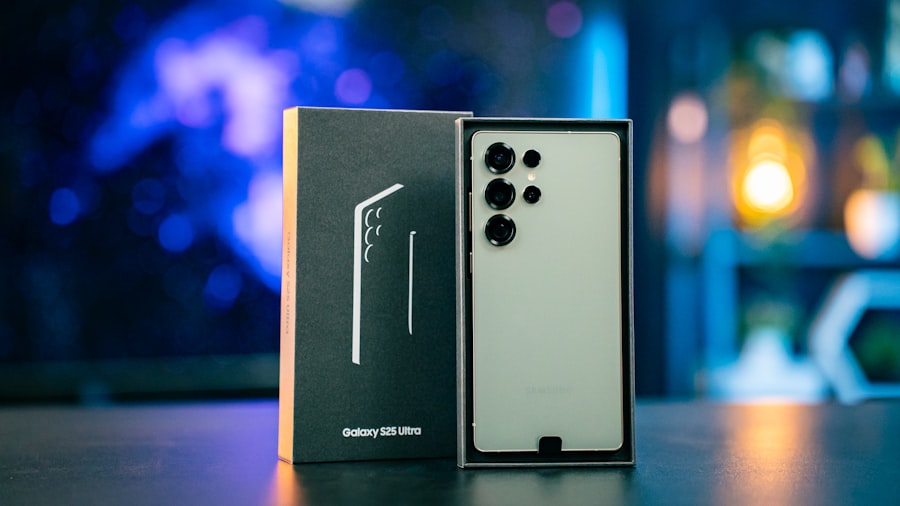
In an era where smartphones are becoming increasingly larger, Samsung’s One-Handed Mode is a welcome feature for those who find it challenging to operate their devices with one hand. This mode simplifies navigation by shrinking the display size, making it easier to reach all corners of the screen without straining fingers or adjusting grip. It is particularly beneficial for users who are often on the go and need quick access to their devices without fumbling.
Activating One-Handed Mode is straightforward; users can either enable it through the settings menu or use a gesture to trigger it quickly. Once activated, the screen size reduces significantly, allowing for easier access to apps and features. This mode is especially useful when texting or browsing while multitasking, as it minimizes the risk of dropping the device or making accidental taps. By incorporating this feature into their daily routine, users can enjoy a more comfortable and efficient smartphone experience.
Making the Most of Samsung DeX
| Model | Display Size | RAM | Storage | Camera |
|---|---|---|---|---|
| Samsung Galaxy S20 | 6.2 inches | 8 GB | 128 GB | 64 MP + 12 MP + 12 MP |
| Samsung Galaxy S21 | 6.2 inches | 8 GB | 128 GB | 12 MP + 64 MP + 12 MP |
| Samsung Galaxy S10 | 6.1 inches | 8 GB | 128 GB | 12 MP + 12 MP + 16 MP |
Samsung DeX transforms a smartphone into a desktop-like experience, allowing users to connect their devices to a monitor and use them as if they were working on a computer. This feature is particularly advantageous for professionals who need to work on documents or presentations while away from their desks. With DeX, users can enjoy a larger display and utilize keyboard shortcuts, making tasks more efficient and streamlined.
Setting up Samsung DeX is simple; users can connect their device to a monitor via HDMI or USB-C cable. Once connected, they can access apps in a windowed format, similar to traditional desktop environments. This capability allows for easy multitasking and enhances productivity by providing a familiar interface for those accustomed to working on computers. Additionally, Samsung DeX supports various applications that are optimized for larger screens, ensuring that users can take full advantage of this powerful feature.
Mastering the S Pen Features
The S Pen is one of Samsung’s standout features, particularly for users of the Galaxy Note series and certain Galaxy Tab models. This stylus not only allows for precise navigation but also offers a range of functionalities that enhance creativity and productivity. From taking notes and sketching to navigating through apps with ease, mastering the S Pen can significantly elevate the user experience.
One of the most popular features of the S Pen is its ability to convert handwritten notes into digital text seamlessly. This functionality is invaluable for students and professionals alike, as it allows them to capture ideas quickly without worrying about legibility. Additionally, the S Pen includes Air Actions, which enable users to control their device remotely by performing gestures in the air. This feature is particularly useful during presentations or when taking group photos from a distance. By exploring all that the S Pen has to offer, users can unlock new levels of creativity and efficiency in their daily tasks.
Optimizing Battery Life with Power Saving Modes
Battery life is a crucial aspect of any smartphone experience, and Samsung devices come equipped with various power-saving modes designed to extend usage time significantly. These modes allow users to manage battery consumption effectively by limiting background processes and reducing screen brightness when necessary. For those who rely heavily on their devices throughout the day, understanding how to optimize battery life can make all the difference.
Samsung offers several power-saving options that cater to different needs. The standard Power Saving Mode reduces performance slightly while extending battery life by limiting background data usage and disabling certain features. For users who need even more longevity, the Maximum Power Saving Mode takes things further by restricting app access and turning off non-essential functions entirely. By utilizing these modes strategically, users can ensure that their devices remain operational even during long days away from charging sources.
Using Samsung Pay for Easy and Secure Payments
Samsung Pay revolutionizes how users make transactions by providing a secure and convenient method for payments directly from their smartphones. This feature allows individuals to store credit and debit card information securely and make purchases at various retailers without needing physical cards. The convenience of Samsung Pay not only simplifies shopping but also enhances security through advanced encryption technologies.
Setting up Samsung Pay is straightforward; users simply need to download the app and add their payment information securely. Once set up, making payments is as easy as tapping their device against compatible terminals. The added layer of security comes from tokenization technology, which ensures that actual card numbers are never shared during transactions. This makes Samsung Pay an excellent choice for those concerned about fraud or data breaches while shopping.
Personalizing the Always On Display
The Always On Display (AOD) feature on Samsung devices allows users to view essential information at a glance without fully waking their device. This functionality not only saves battery life but also provides quick access to notifications, time, and date without needing to unlock the phone. Personalizing the AOD can enhance its utility further by allowing users to choose what information they want displayed.
Users can customize various aspects of the Always On Display through settings, including clock styles, colors, and what notifications appear. For instance, someone might prefer a minimalist clock design while another user may opt for vibrant artwork as their background. Additionally, AOD can be set to show notifications from specific apps only, ensuring that important messages are highlighted while minimizing distractions from less critical alerts. By tailoring this feature to individual preferences, users can create an efficient and aesthetically pleasing interface that suits their lifestyle.
Enhancing Security with Biometric Authentication
In today’s digital age, security is paramount, and Samsung devices offer robust biometric authentication options that enhance user protection significantly. With features like fingerprint scanning and facial recognition, users can unlock their devices quickly while ensuring that unauthorized access is prevented effectively. These biometric methods provide an added layer of security that traditional passwords often lack.
Setting up biometric authentication is simple; users can navigate to settings and choose their preferred method—either fingerprint or facial recognition—and follow the prompts to register their biometrics securely. Once set up, unlocking the device becomes instantaneous and convenient, allowing users to access their information without fumbling with passwords or PINs. Moreover, biometric authentication extends beyond just unlocking; it can also be used for secure transactions through Samsung Pay or accessing sensitive applications like Secure Folder.
Exploring the Camera’s Pro Mode for Professional-Looking Photos
Samsung’s camera technology has garnered acclaim for its impressive capabilities, particularly when it comes to capturing stunning images in various conditions. For photography enthusiasts looking to take their skills to the next level, exploring Pro Mode offers an opportunity to manipulate settings manually for more creative control over shots. This mode allows users to adjust parameters such as ISO, shutter speed, white balance, and focus—elements that are crucial for achieving professional-looking photographs.
Activating Pro Mode is straightforward; users simply need to open the camera app and select this option from the menu. Once in Pro Mode, they can experiment with different settings based on lighting conditions and desired effects. For instance, adjusting ISO levels can help capture clearer images in low-light situations while manipulating shutter speed can create stunning motion blur effects in action shots. By mastering these settings within Pro Mode, photography enthusiasts can elevate their skills and produce images that rival those taken by professional photographers.
In conclusion, Samsung devices offer an array of features designed to enhance user experience across various aspects of daily life—from multitasking capabilities and security measures to creative tools like Pro Mode in photography. By exploring these functionalities thoroughly and customizing them according to personal preferences, users can maximize their device’s potential while enjoying a seamless integration into their routines.